
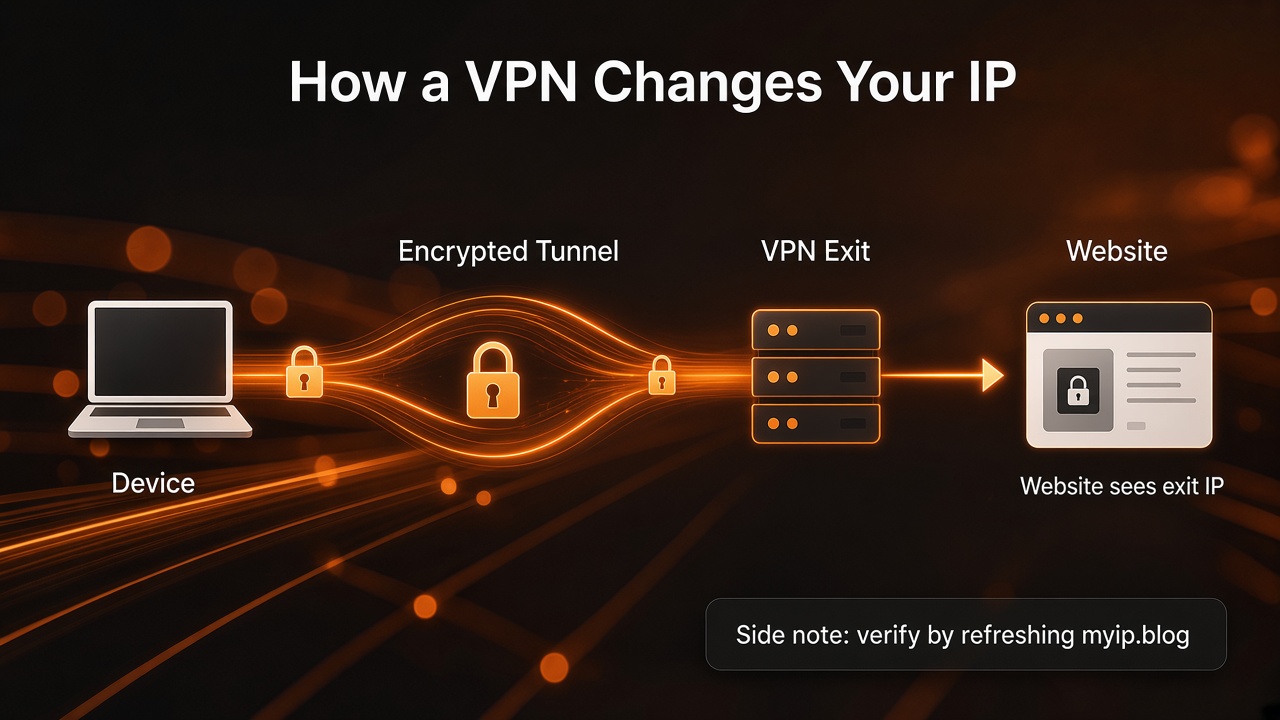
How a VPN Changes the IP Websites See
A VPN (virtual private network) sends your device’s internet traffic through another server before it reaches most websites. One practical effect is simple: many sites stop seeing your usual ISP public IP and see the VPN server’s address instead.
You do not need cryptography detail to understand the idea. Think in terms of path and exit point.
Tunnel and exit IP, without the jargon pile
Without a VPN, a typical path looks like this:
- Your device talks to your router (private IPs on the LAN).
- Your router reaches the internet using your provider’s public IP.
- Websites see that public IP (or a shared CGNAT address from the provider).
With a VPN client turned on:
- Your device encrypts traffic and sends it to a VPN server.
- The VPN server decrypts it and forwards requests to websites.
- Websites often see the VPN server’s exit IP — an address belonging to the VPN’s network, not your home ISP’s customer address.
That middle hop is why people say the VPN “changes your IP.” More precisely, it changes the public IP that many destinations observe for your session.
Your home printer and other local devices still use private addresses on Wi‑Fi. A VPN does not rewrite how your laptop finds 192.168.1.50 on the same LAN. For that split, see Public vs private IP addresses. For what a public IP is in general, see What is a public IP address?.
What usually changes
When the VPN is working for a given app or browser path:
- The public IP shown on a checker like myip.blog often becomes the VPN exit address.
- Rough location labels may follow the VPN server’s region (for example, a server in another country) rather than your ISP’s usual area estimate.
- ISP / network labels may name the VPN operator’s network instead of your home provider.
Those fields on myip.blog (for this visit) are a quick way to notice the difference after you connect or disconnect.
What may not change (high level)
A VPN is not a magic cloak for everything on a device. Without naming attack steps, a few limits are worth knowing in plain language:
- Apps that bypass the VPN. Some programs can use the normal network path if they are excluded from the VPN, or if the VPN is only set up for certain traffic. Those apps may still show your ISP IP to servers.
- DNS. DNS is how names like
myip.blogturn into addresses. If DNS queries leave through a path that is not the VPN, a network observer might learn which sites you resolve even while page traffic uses the tunnel. Good VPN setups aim to keep DNS inside the tunnel; mixed setups sometimes do not. - WebRTC in browsers. Some browser features can reveal addresses in ways that confuse a simple “IP check” story. The details vary by browser and settings. The practical takeaway: if a checker still shows your ISP IP while you believe a VPN is on, treat that as a signal to investigate your client and browser — not as proof that IP checks are wrong.
- Accounts and cookies. Logging into a site still identifies you to that site, regardless of IP. An IP change does not log you out of every service or erase account history.
- Local network behavior. As noted above, private LAN traffic is a different layer.
None of this is a reason to panic. It is a reason to verify with a simple refresh when privacy of the ISP IP matters to you.
How to verify with myip.blog
A straightforward check:
- Open myip.blog with the VPN off. Note the public IP and, if shown, approximate location and network fields.
- Connect your VPN.
- Refresh myip.blog (or open it again).
- Compare. If the VPN is covering that browser path, the public IP and related labels often change to match the exit.
You can also call the JSON endpoint https://myip.blog/api/me before and after, if you prefer raw fields. The site reports what it sees for this visit; it is not a permanent archive of your history.
If nothing changes, common explanations include: the VPN did not connect, the browser is not using the VPN path, or you are looking at a cached tab. Fix the connection path first, then refresh again.
Soft note on choosing privacy tools
If you want websites to see a VPN exit IP instead of your ISP-assigned public IP, a VPN is one common approach. Pick tools you trust, read how they handle DNS and kill switches if those matter to you, and confirm with a checker after you connect.
myip.blog may show a soft link to VPN options for people who want that privacy choice. There is no requirement to use one. The homepage’s job remains showing the IP for the current visit so you can see what changed.
FAQ
Does a VPN hide my IP from my internet provider?
Your provider can still see that your connection is talking to a VPN server. What many websites no longer see is your usual customer public IP; they see the exit IP instead. “Hidden from websites” and “invisible to your ISP” are different claims.
Will every site show the VPN IP?
Most sites that only look at the connecting address will. Special browser features, misconfigured clients, or apps outside the tunnel can produce mixed results. When in doubt, check myip.blog from the same browser you care about.
Why does my location still look wrong or vague?
Location from IP is approximate even without a VPN. With a VPN it often reflects the server region. City labels especially should be treated as rough.
Is IPv6 covered when I use a VPN?
It depends on the VPN and your network. Some setups tunnel both IPv4 and IPv6; others focus on IPv4. If an IPv6 address still looks like your ISP’s while IPv4 changed, your client may not be handling IPv6 the way you expect.
Does turning on a VPN change my private 192.168 address?
Usually not. Private LAN addresses stay for local devices. The VPN mainly affects the public address seen on the internet path.